Hi everyone,
I’d like to share a project I’ve been building on top of OpenEMR:
Patient Express Portal — a lightweight, “express” patient-facing
portal focused on the two things patients actually check most often:
lab results and imaging studies. It sits alongside OpenEMR’s native
patient portal, not instead of it — there’s a one-click button to jump
into the full native portal whenever more depth is needed.
Repo: GitHub - luisuriarte/patient-express-portal · GitHub
What it does
- Lab Results tab — pulls from
procedure_order/procedure_report
(grouped by encounter), and also surfaces scanned PDF/JPG lab
reports that were uploaded as plain OpenEMR documents (not through a
procedure order). If a scanned document shares an encounter with a
real lab panel, it’s merged into the same card; otherwise it gets its
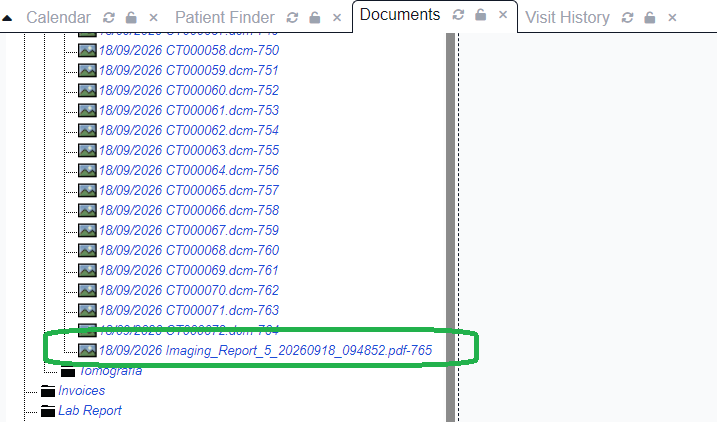
own “Lab Document” card. - Imaging tab — lists DICOM studies and non-DICOM
images/PDFs (X-rays, dental photos, etc.), with inline viewing for
images/PDFs and a direct link into an OHIF Viewer instance for
DICOM studies. Documents that share the sameStudyInstanceUIDare
automatically grouped into a single “Study” card (instead of one card
per DICOM file/series), even when a study has dozens of instances. - Imaging Report form (
forms/imaging_report) — lets clinical
staff upload DICOM files, images, PDFs, or a ZIP archive containing
a full multi-series study, and have everything pushed to an
Orthanc PACS server automatically. Each file is uploaded
individually and force-reassigned to a deterministic
StudyInstanceUIDtied to the procedure order, so a whole study
(however many folders/series the ZIP contains) always lands as one
coherent study in Orthanc/OHIF. - Category mapping admin screen — instead of hardcoding which
OpenEMR document categories count as “imaging” vs “laboratory” (every
clinic’s category tree looks different), there’s a small admin screen
backed by its own table (express_portal_category_mapping). You only
need to mark the root category of a branch (e.g. “Dental Imaging”)
and every child category inherits the classification automatically by
walking upcategories.parent— no core OpenEMR tables or files are
altered for this.
Stack / dependencies
- OpenEMR (developed/tested against a recent 7.x-line build)
- Orthanc (with the DICOMweb plugin) as the PACS server — installed
natively on Ubuntu via the official Orthanc apt repository (not
Docker) - OHIF Viewer (v3) — deployed via Docker, pointed at Orthanc’s
DICOMweb endpoint - No third-party PHP packages beyond what OpenEMR already ships with
Core file changes (important, please read)
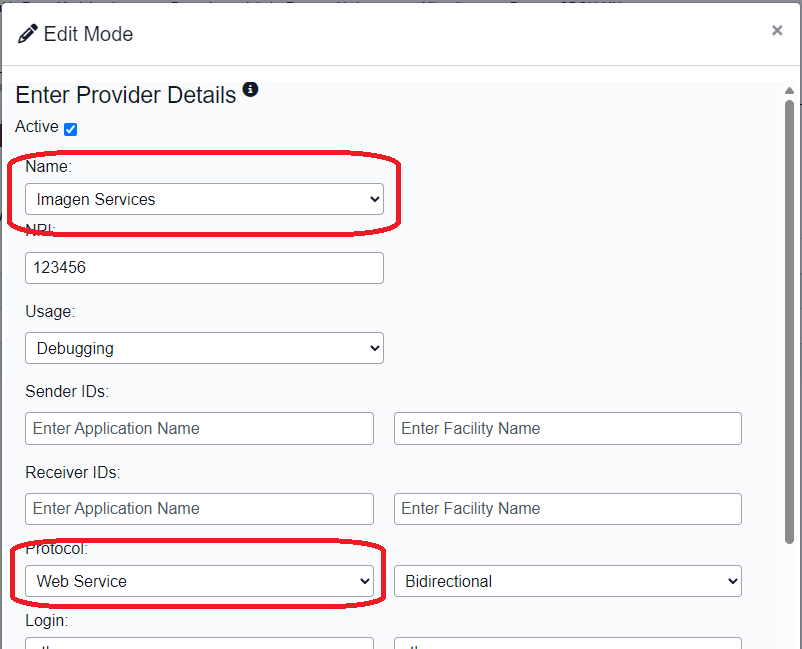
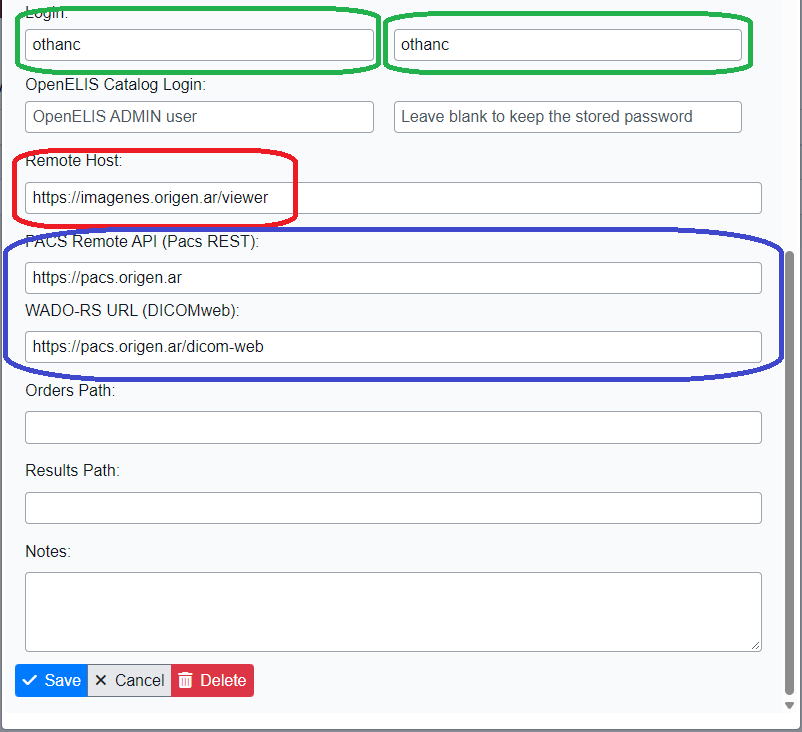
To make all of this work end-to-end, I also had to make small
modifications to two OpenEMR core files: the Procedure Provider
screen and the Orders form (needed so a PACS provider can be
configured/selected the same way a lab provider is, and so orders can
carry the extra imaging/PACS context this module needs). These are
not module-only additions — they touch existing core OpenEMR code.
To keep this as transparent and low-risk as possible for anyone
installing this, the repo includes a patches/ folder with the exact
diffs against core, rather than silently overwriting files. Please
review those diffs before applying them, and expect to have to
re-apply/re-check them after upgrading OpenEMR core, since they aren’t
guaranteed to survive an update untouched.
Status & feedback welcome
This is still evolving — built for my own clinics in Argentina, but
designed so category mapping and PACS provider config (procedure_providers)
aren’t hardcoded, so it should adapt to other setups. I’d genuinely
appreciate feedback, bug reports, or PRs, especially around:
- Edge cases in ZIP/DICOM upload (multi-study ZIPs, unusual folder
structures) - Whether the Orthanc/OHIF integration pattern (per-file upload +
forced StudyInstanceUID reassignment) makes sense vs. other
approaches people have used
One heads-up: since this started as an internal tool for
Spanish-speaking clinics, some UI strings and code comments are still
in Spanish — apologies in advance, happy to work through translating
the remaining bits if there’s interest in using this more broadly.
Thanks for reading, and thanks to this community for OpenEMR itself —
none of this would exist without it.
In spanish
Hola a todos,
Quiero compartir un proyecto que vengo construyendo sobre OpenEMR:
Patient Express Portal — un portal de paciente liviano y “express”,
enfocado en las dos cosas que los pacientes más consultan: resultados
de laboratorio y estudios de imágenes. Convive junto al portal nativo
de OpenEMR, no lo reemplaza — tiene un botón de un clic para saltar al
portal nativo completo cuando se necesita más profundidad.
Repositorio: GitHub - luisuriarte/patient-express-portal · GitHub
Qué hace
- Pestaña de Laboratorio — trae datos de
procedure_order/
procedure_report(agrupados por encuentro), y además muestra
informes de laboratorio escaneados (PDF/JPG) que fueron subidos como
documentos comunes de OpenEMR (no a través de una orden de
procedimiento). Si un documento escaneado comparte encuentro con un
panel de laboratorio real, se fusiona en la misma tarjeta; si no,
aparece como su propia tarjeta de “Documento de Laboratorio”. - Pestaña de Imágenes — lista estudios DICOM e imágenes/PDFs
no-DICOM (radiografías, fotos dentales, etc.), con visualización
inline para imágenes/PDFs y un link directo a un visor OHIF para
los estudios DICOM. Los documentos que comparten el mismo
StudyInstanceUIDse agrupan automáticamente en una sola tarjeta de
“Estudio” (en vez de una tarjeta por archivo/serie DICOM), incluso
cuando un estudio tiene decenas de instancias. - Formulario de Informe de Imágenes (
forms/imaging_report) —
permite que el personal clínico suba archivos DICOM, imágenes, PDFs,
o un archivo ZIP con un estudio completo de varias series, y que
todo se suba automáticamente a un servidor PACS Orthanc. Cada
archivo se sube individualmente y se reasigna por la fuerza a un
StudyInstanceUIDdeterminístico ligado a la orden de procedimiento,
de modo que un estudio completo (sin importar cuántas carpetas/series
traiga el ZIP) siempre termine como un único estudio coherente en
Orthanc/OHIF. - Pantalla de administración de mapeo de categorías — en vez de
hardcodear qué categorías de documentos de OpenEMR cuentan como
“imágenes” o “laboratorio” (el árbol de categorías de cada clínica es
distinto), hay una pequeña pantalla de administración respaldada por
su propia tabla (express_portal_category_mapping). Solo hace falta
marcar la categoría raíz de una rama (por ejemplo, “Dental Imaging”)
y todas las categorías hijas heredan la clasificación automáticamente
subiendo porcategories.parent— no se altera ninguna tabla ni
archivo del núcleo de OpenEMR para esto.
Stack / dependencias
- OpenEMR (desarrollado/probado contra una build reciente de la línea 7.x)
- Orthanc (con el plugin DICOMweb) como servidor PACS — instalado
de forma nativa en Ubuntu vía el repositorio apt oficial de Orthanc
(no Docker) - OHIF Viewer (v3) — desplegado vía Docker, apuntando al endpoint
DICOMweb de Orthanc - Sin paquetes PHP de terceros más allá de lo que ya trae OpenEMR
Cambios en archivos del núcleo (importante, por favor leer)
Para que todo esto funcione de punta a punta, también tuve que hacer
pequeñas modificaciones a dos archivos del núcleo de OpenEMR: la
pantalla de Proveedores de Procedimiento y el formulario de
Órdenes (necesario para poder configurar/elegir un proveedor PACS
de la misma forma que un proveedor de laboratorio, y para que las
órdenes puedan llevar el contexto extra de imágenes/PACS que necesita
este módulo). No son solo agregados del módulo — tocan código existente
del núcleo de OpenEMR.
Para que esto sea lo más transparente y de bajo riesgo posible para
quien lo instale, el repositorio incluye una carpeta patches/ con los
diffs exactos contra el núcleo, en vez de sobrescribir archivos en
silencio. Por favor revisen esos diffs antes de aplicarlos, y tengan en
cuenta que probablemente haya que volver a aplicarlos/revisarlos
después de actualizar el núcleo de OpenEMR, ya que no está garantizado
que sobrevivan intactos a una actualización.
Estado y feedback bienvenido
Todavía está en evolución — lo construí para mis propias clínicas en
Argentina, pero está diseñado para que el mapeo de categorías y la
configuración del proveedor PACS (procedure_providers) no estén
hardcodeados, así que debería adaptarse a otras configuraciones.
Agradezco de verdad feedback, reportes de bugs, o PRs, especialmente
sobre:
- Casos borde en la subida de ZIP/DICOM (ZIPs con múltiples estudios,
estructuras de carpetas poco comunes) - Si el patrón de integración con Orthanc/OHIF (subida archivo por
archivo + reasignación forzada de StudyInstanceUID) tiene sentido
frente a otros enfoques que haya usado la comunidad
Un aviso: como esto arrancó como una herramienta interna para clínicas
de habla hispana, todavía hay textos de la interfaz y comentarios de
código en español — mis disculpas de antemano, y con gusto voy
traduciendo lo que falte si hay interés en usarlo más ampliamente.
Gracias por leer, y gracias a esta comunidad por OpenEMR en sí mismo —
nada de esto existiría sin eso.
Luis.